


SMART tag™ Parent App
3.6263.00 Reviews
App Specs
- Version
- 1.5.1
- Updated On
- License
- Free
- Downloads
- 100,000+
- Developer
- SMART tag
- Categories
- Education
- Platform
- Android
Screenshots
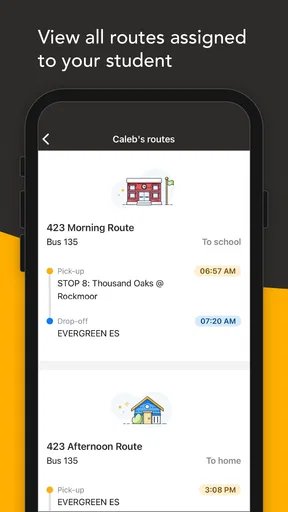
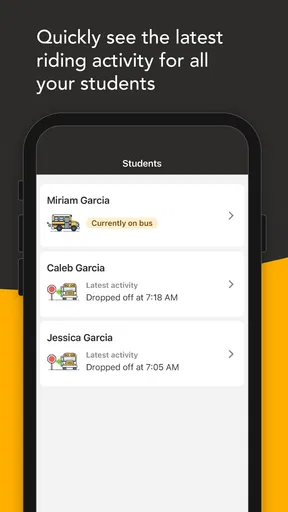
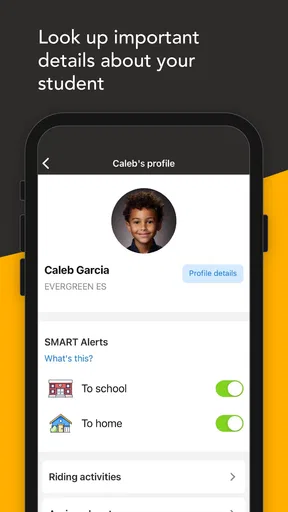
 Analysis by AppCompare
I approached SMART tag™ Parent App as a practical education tool rather than another general-purpose family app. Its purpose is closely tied to student management and notifications, so the value appears when a parent needs timely information connected with a child’s school routine. The app is free, aimed at everyone, and developed by SMART tag. That combination makes it easy to consider, especially for families who want a focused way to stay informed instead of relying entirely on scattered messages.
My first impression is that this is an app built around attention and timing. A notification about a student matters most when it arrives at the right moment and is easy to understand. That also means the quality of the experience depends heavily on connectivity, phone settings, and the parent’s daily habits. It is not the kind of application I would judge only by how attractive its screens look. I would judge it by whether it helps me notice important school-related information without creating another source of confusion.
How SMART tag™ Parent App fits into a school day
The app belongs in the education category, but it is not a learning platform in the usual sense. I would not install it expecting lessons, quizzes, study plans, or a replacement for a school portal. Its role is more focused: it gives parents a mobile point of contact for student management and notifications. That narrower purpose can be a strength when the school-related information I need is already connected to the SMART tag system.
In everyday use, the most useful scenario is a busy transition between home, work, and school. Imagine checking the phone before leaving the office, while waiting outside a classroom, or during the short pause before preparing dinner. A parent may not have time to search through email threads or remember which school webpage contains the latest update. A dedicated notification app can reduce that friction by placing the relevant information in a familiar mobile setting.
That convenience should not be confused with complete school administration. For detailed records, long conversations, formal documents, or complicated account tasks, a full web portal may still be more comfortable. I see this app as the quick-access layer: useful for awareness and timely checks, but not necessarily the only tool a family needs.
The developer, SMART tag, has kept the product identity clear. Even the short store description is simply “SMART tag™,” while the broader summary points toward student management and notifications. I prefer that focused approach to an app that claims to handle every part of family life. The trade-off is that the experience may feel limited if I want a broader dashboard with calendars, homework, messaging, attendance history, and billing all in one place.
Why connectivity changes the experience
Because notifications are central to the app’s purpose, network conditions become part of the user experience. When my phone has a reliable connection, the app’s role is straightforward: open it when I want to check information, and pay attention when a relevant alert appears. When the connection is weak or delayed, the most important question is not whether the interface still opens, but whether the information I am seeing is current.
Worth Reading Before You Choose

EA SPORTS FC Mobile 26 Is a Bigger Football Game, but It Takes Time

Flipboard Shows What News Apps Must Do Beyond the Feed

Switching to Android Auto Means Rethinking Your Driving Routine

Google Calendar Makes a Crowded Week Easier to Manage

Ludo King Makes the Most of the Minutes Between Plans

Baby Panda World Brings Quick Play to Modern Phones, but Its Game Library Feels Busy
I would treat a notification as a prompt to check the app, not automatically as a complete record of everything happening. That is a useful habit for any school communication tool, but it matters especially here because a parent could be moving between Wi-Fi and mobile data during a commute. If an alert arrives while the phone is temporarily offline, I would wait for the connection to stabilize and then reopen the app before making decisions based on it.
This is also where phone-level notification controls matter. I would check that alerts are allowed, that the app is not being silenced by a focus mode, and that battery-saving settings are not restricting its activity. Those are not glamorous setup steps, but they can determine whether a notification-based app feels dependable. A parent who installs it and never reviews those settings may wrongly blame the app for a phone configuration problem.
There is a subtle trade-off here. Immediate alerts are convenient, but they can also interrupt a work meeting, a drive, or family time. I would keep important notifications enabled while using the phone’s broader sound and focus controls to decide when interruptions are acceptable. The goal is not to receive every alert loudly at every moment; it is to make sure important information remains visible and reviewable.
Using it in real mobile situations
The mobile format is the strongest reason to choose this app over a school website alone. A browser portal may contain more information, but opening it on a small screen, signing in repeatedly, and navigating through several pages can be inconvenient. A parent app is better suited to quick checks while standing in a pickup area or handling a changing schedule.
I would still avoid checking it while driving or while walking through a crowded area. Notifications can create a false sense of urgency, and the safest workflow is to wait until I can look at the information properly. If an alert is vague or requires a response, I would open the app when stationary rather than trying to interpret it from a lock-screen preview.
Another practical use is shared family responsibility. If more than one adult helps manage a student’s routine, a mobile notification channel can make it easier for the person currently handling pickup or home arrangements to stay aware. However, I would not assume that installing the app on several phones automatically creates a coordinated family workflow. Each person should understand which account or student information they are viewing and avoid treating one person’s screen as proof that another person received the same message.
For parents with older phones, the minimum operating system is Android 7.0, which keeps the app accessible to many devices still in everyday use. The current version is 1.5.1. I would update it through the normal app store process when updates are offered, particularly because notification behavior can be affected by compatibility changes in the operating system. Keeping the phone’s system software and the app reasonably current is a simple way to reduce avoidable connection problems.
The age rating is Everyone, which suits a family-facing education application. Still, an Everyone rating does not mean every notification is appropriate to display publicly on a shared lock screen. I would review the phone’s preview settings if the device is used by several people or left where others can see it. That is a small privacy-conscious step, especially when student-related information appears in alerts.
What happens when information is delayed
The most important test for this kind of app is not a perfect connection; it is what I do when something goes wrong. If an alert does not appear, I would first check the obvious causes: connection status, notification permissions, silent or focus modes, battery restrictions, and whether the app needs to be reopened. I would then compare the app’s displayed information with any official school communication before assuming that a missing alert means nothing has changed.
If the app opens but content seems slow to appear, I would avoid repeatedly tapping buttons or refreshing in rapid succession. That can make it harder to tell whether the problem is the network or the application. A calmer sequence works better: confirm the connection, wait briefly, close and reopen the app if necessary, and then check again. If the information remains unavailable, the school’s established communication channel is the sensible fallback.
This fallback point is important. I would not make SMART tag™ Parent App the sole method for time-sensitive arrangements until I had used it long enough to understand how reliably it fits my school’s communication routine. For a pickup change, an urgent attendance question, or anything with consequences, I would verify through the school when the app does not provide a clear and current answer.
The same caution applies after changing phones or reinstalling the app. I would expect to review notification permissions and account access again rather than assuming that every setting transfers perfectly. If a family shares responsibility, I would also make sure each adult knows how to recognize the correct student information. Confusion at this stage can look like a connectivity failure even when the real issue is setup.
One useful habit is to check the app at a predictable point in the day instead of waiting passively for every alert. For example, I might review it before the morning departure and again before afternoon arrangements. This does not replace notifications, but it gives me a backup rhythm. It is particularly helpful when the phone was temporarily disconnected, when an alert was dismissed too quickly, or when a device’s notification behavior is inconsistent.
Keeping mobile data use sensible
A parent may hesitate to use a notification app away from Wi-Fi because mobile data feels limited or unpredictable. I would not keep the app open continuously just to watch for changes. A better approach is to let the phone handle alerts normally, then open the app when I receive something relevant or during a planned check. That keeps the app in a supporting role instead of turning it into a screen I monitor all day.
When traveling between weak Wi-Fi and mobile coverage, I would wait for a stable connection before judging whether information has updated. A page that looks unchanged may simply reflect a delayed connection rather than a confirmed lack of new information. This distinction is easy to miss when using a phone quickly, and it is one of the main reasons I would avoid making important arrangements from a single glance.
Data-conscious use also means controlling distractions. If the phone receives many alerts, I would organize them through the operating system’s notification settings rather than disabling everything. The ideal setup lets me recognize school-related updates without making every message feel like an emergency. If the app’s alerts are mixed with unrelated notifications, a parent can easily overlook the one that matters.
I would also be careful with public networks. Checking a school-related app in a café or public building may be convenient, but I would avoid leaving the account open on a shared device and would lock the phone after use. The app is designed for family and student information, so ordinary device hygiene matters: use a screen lock, keep the phone personal, and do not hand it to a child or stranger while the account is open.
These habits do not make the app more feature-rich, but they make its central function more dependable. A notification system works best when the parent’s phone is configured intentionally. Without that preparation, even a well-designed app can feel unreliable simply because alerts are hidden, delayed, or drowned out.
Where it beats the usual alternatives
The usual alternative is often a mixture of email, text messages, a school website, and verbal reminders. That mixture can work, but it spreads attention across several places. SMART tag™ Parent App is more appealing when the school’s student-management communication is already organized around it. I would rather check one purpose-built mobile app than search old emails for a message whose timing I cannot remember.
Compared with a browser-based portal, the app should be more natural for short mobile interactions. Compared with ordinary messaging, it offers a clearer connection to the student-management context instead of placing school updates beside every personal conversation. Compared with a general family organizer, it is more directly tied to school communication rather than household planning.
Those comparisons also show when another option may be better. If my school relies mainly on email, the app may add another place to monitor without reducing work. If I need extensive records, document handling, or long-form communication, a full portal may be more useful. If my household needs shared calendars, chores, appointments, and broader planning, a family organizer will cover more ground. I would choose this app for focused school awareness, not as a universal replacement.
The public response gives a mixed but meaningful signal: the app holds a 3.6 average from around 373 ratings, with more than 262 written reviews. It has passed 100,000 installs, so it is not an obscure experiment, but the rating also tells me to keep expectations realistic. I would install it because its purpose matches a specific need, then judge it by how well it fits my school’s communication habits and my phone’s notification behavior.
Who should install it, and who should skip it
I would recommend trying it to a parent whose child’s school uses SMART tag for student management and notifications, especially if that parent often needs updates while away from a computer. It makes the most sense for people who want quick mobile access and are willing to spend a few minutes checking permissions, connection behavior, and account setup.
I would be more cautious if I already have a reliable routine based on a school portal and email, and neither system creates confusion. Adding another app is not automatically an improvement. I would also skip it as a primary solution if I need a complete academic workspace, detailed family scheduling, or communication tools beyond its focused role.
Families with inconsistent mobile coverage can still try it, but they should keep a second communication route for urgent matters. The app may remain useful for checking information when a connection returns, yet I would not design a child’s entire pickup or attendance plan around an alert that has not visibly arrived.
After using it, my view is that the best experience comes from treating SMART tag™ Parent App as a dependable checkpoint rather than a magic notification guarantee. Install it, configure the phone carefully, check it at sensible times, and verify critical changes when connectivity is uncertain. That workflow respects what the app does well while avoiding the common mistake of expecting a focused education app to replace every school and family tool.
Overall, I find the concept practical and appropriately narrow. Its free access and Everyone rating make it easy for families to consider, while the mobile format is genuinely useful when a parent is away from a desktop. The main limitation is also clear: its value is tied to timely communication, so network conditions, notification settings, and the school’s own use of the system all shape the result. For the right school context, I would recommend giving it a fair trial. For broader organization or detailed academic work, I would choose a more comprehensive alternative and keep this app only if it adds a clear communication advantage.
Pros
- Quickly locates a paired SMART tag through the parent app.
- Useful separation alerts can help monitor tagged belongings.
- Simple interface makes routine tracking easy for families.
- Supports multiple tags for tracking several personal items.
- Low-profile tags are convenient for backpacks
- keys
- and luggage.
Cons
- Requires Bluetooth and location permissions to work reliably.
- Tracking range depends heavily on nearby phones and surroundings.
- Not a substitute for GPS tracking or monitoring a child’s location.
- Alerts may be delayed when the phone is in battery-saving mode.
- Some features may require compatible SMART tag hardware.
FAQs for SMART tag™ Parent App
What is the SMART tag™ Parent App used for?
The SMART tag™ Parent App is designed to help parents manage and monitor compatible SMART tag™ child-safety devices. Depending on the supported product, the app may let you view a child’s location, check device status, communicate with the tag, and adjust safety settings. Its exact features can vary by device model, region, and subscription, so checking compatibility before downloading is important.
Does the SMART tag™ Parent App require a compatible device or subscription?
Yes. The app is generally intended to work with a compatible SMART tag™ device rather than functioning as a standalone tracking application. Some features may also depend on an active mobile-data plan, account registration, or a paid service subscription. Before installing, parents should confirm that their specific SMART tag™ model is supported and review any recurring fees, activation requirements, and service limitations.
How accurate is location tracking in the SMART tag™ Parent App?
Location accuracy can vary according to the SMART tag™ model, GPS signal, mobile-network coverage, Wi-Fi availability, indoor obstructions, and the device’s battery condition. Outdoor locations are usually more precise than indoor positions, and updates may not always be instantaneous. The app should therefore be treated as a helpful safety and location tool, not as a guaranteed real-time replacement for supervision or emergency services.
Can several family members use the SMART tag™ Parent App?
Family access depends on the account system and the SMART tag™ service connected to the device. In many cases, a primary parent or guardian creates the account and may be able to invite additional approved caregivers. Users should review permissions carefully, because shared access can expose location and communication information. Use strong login credentials and only grant access to trusted family members.
What should I check before downloading the SMART tag™ Parent App?
Before downloading, check that your Android or iOS version meets the app’s requirements and that your SMART tag™ device is supported in your country. You should also review the app’s privacy policy, required permissions, data or subscription costs, and customer-support options. Location services, notifications, Bluetooth, or mobile data may be necessary for reliable operation, while battery usage can increase during frequent tracking.


